

Fill in the store profile
The rep answers from this page. Thin or wrong facts sound like a new hire who skipped the handbook.
Open Store profile from the account menu, or from the store card under Account → Integrations. The rep uses this on calls: brand, what you sell, shipping, returns, support, and the products you want mentioned.
Review it before the first live call
- 1Connect Shopify first. The profile needs a store.
- 2Run Analyze store if you want Dial Dragon to refresh Shopify data and read your public website for gaps.
- 3Read Brand name, Website, Brand summary, What we sell, Shipping, Returns, and About. Fix anything the crawl got wrong.
- 4Add a customer-facing support email and the policies shoppers already see on the site.
- 5Check Top products if you want Concierge Welcome to start from those.
- 6Add a fact Dial Dragon missed with Add merchant fact, or upload a file (.txt, .md, .csv, .json, .pdf, or .docx).
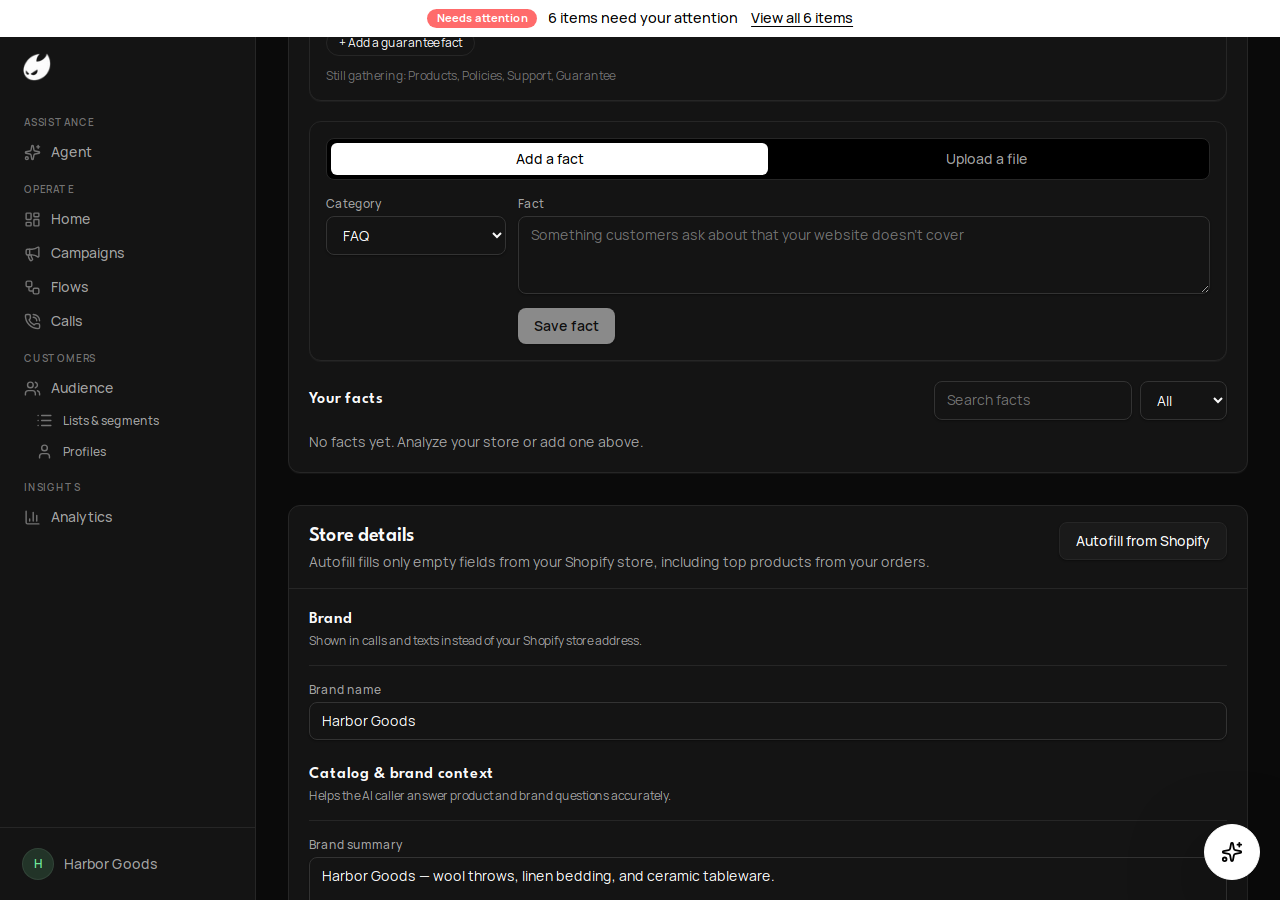
Facts are pulled in when the conversation needs them. They are not read aloud at the start of every call. A website crawl repeats about every 7 days. You still own the words. If a return window on the site is 30 days, the profile should say 30 days.