

When Shopify sync fails
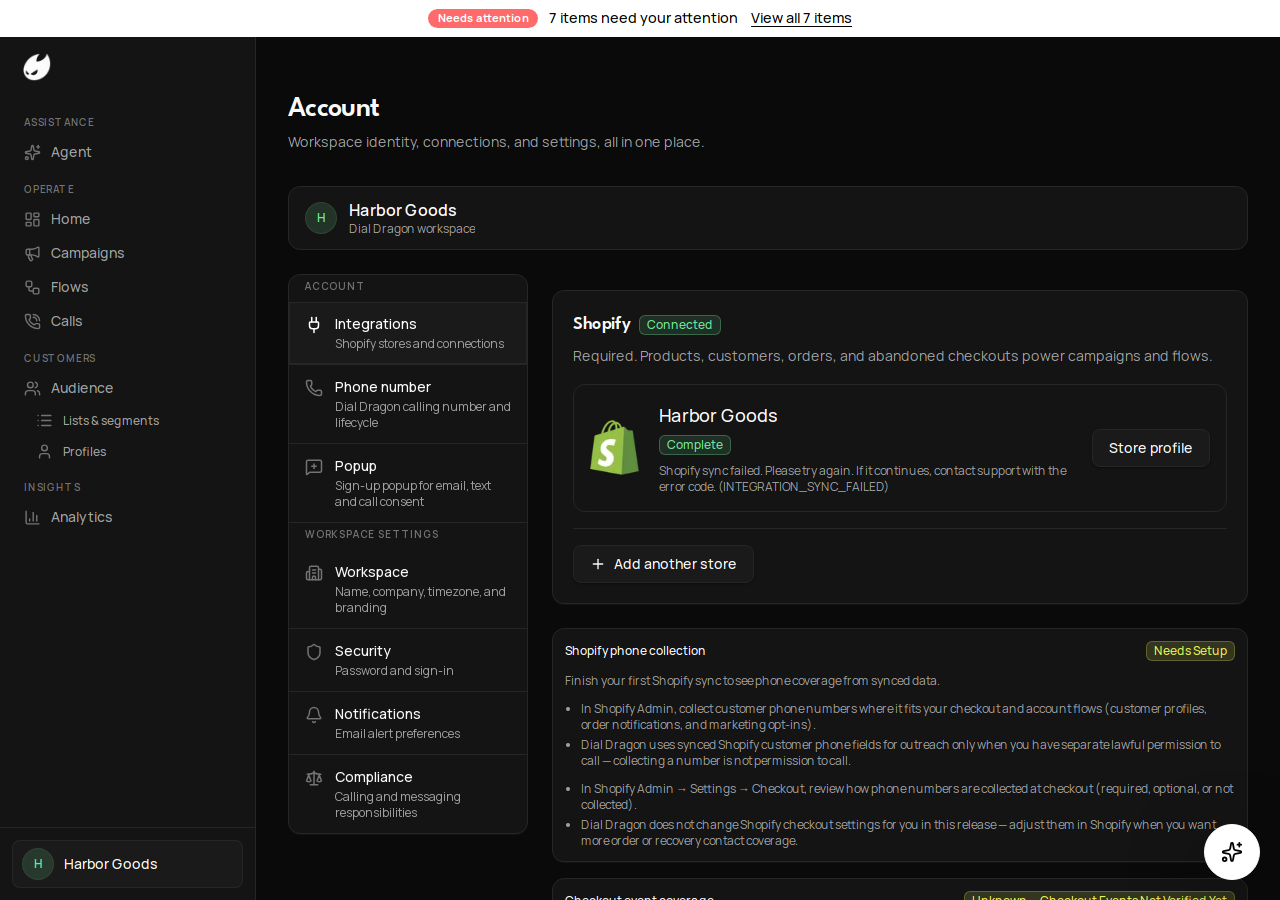
The store card on Account → Integrations is the sync status. A failed sync means new customers, orders, and checkouts are not arriving. Reinstall is the next step when the grant itself is broken.
Dial Dragon does not poll your theme. It syncs products, customers, orders, and abandoned checkouts through the app you approved. If that grant fails, the store card says so.
- 1Open Account → Integrations and read the store card.
- 2If the sync failed, check that the shop domain is the one you think it is.
- 3Use Reinstall store and approve the app again in Shopify admin. A reinstall is a new grant, not a new Dial Dragon account.
- 4Wait until the card shows the sync finished before you judge an audience.
Account → Notifications can email you when a sync job fails. That mail is on by default and goes to the notification address, or to the workspace owner if you have not verified a different one. Connection-loss mail is separate from that toggle. Browsing on the site is never part of the sync, even when the sync is healthy.