

Call consent and the storefront popup
Standard Shopify checkout collects text consent, not call consent. The storefront popup is where email, texts, and calls are separate unchecked boxes.
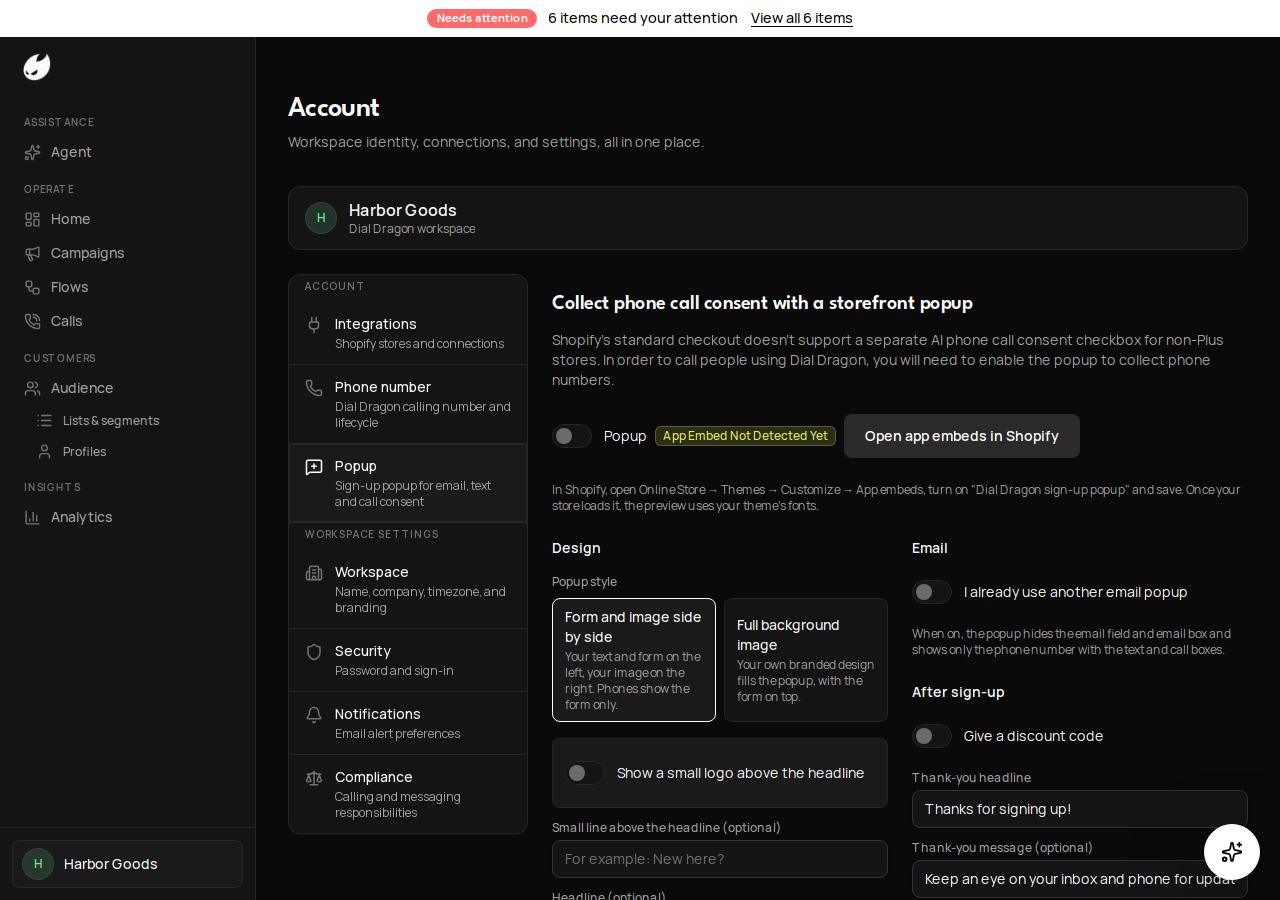
Account → Popup is the sign-up form. The heading on that page is about collecting phone-call consent on the storefront. Customers enter a phone number and choose email, texts, or calls separately. Each box starts unchecked.
- 1Open Account → Popup and turn the popup on.
- 2In Shopify, open Online Store → Themes → Customize → App embeds. Turn on Dial Dragon sign-up popup and save the theme.
- 3Come back. The page says the app embed is on once the storefront has loaded it. Until then it says the embed is not detected yet.
- 4Set the copy, the image, and the colors. The preview is the form shoppers get.
If you are not on Shopify Plus, checkout will not grow a call checkbox. Text consent stays on Shopify’s checkout box. Call consent stays on the popup. On Shopify Plus, add a separate AI phone consent checkbox on the checkout page. Do not put calling consent in the SMS marketing opt-in. The popup is still allowed, and it is not required when that checkout checkbox is how customers agree to calls. Enabling the popup does not make imported customers eligible, and it does not start a campaign.